Almost everyone has been in this exact situation: you need to urgently submit a signed agreement, a tax receipt, or a handwritten form, but you do not have access to a physical flatbed scanner.
You place the document on your desk, hold your smartphone overhead, and snap a picture.
The resulting photograph is rarely submission-ready:
- A dark hand or smartphone silhouette casts a harsh shadow across the center paragraph.
- The paper is angled slightly trapezoidal rather than squared off.
- The background shows wood grain, messy cables, or carpet.
- The page looks dim, gray, and yellowish under incandescent room lighting.
If you submit this raw photo to an employer, bank, or government agency, it looks amateurish at best and is frequently rejected by automated Optical Character Recognition (OCR) ingestion engines.
To solve this, millions of users download mobile scanning apps like CamScanner, only to be hit with aggressive $9.99 monthly subscription paywalls, forced cloud account logins, and unsightly watermarks stamped across the bottom of every page: “Scanned with CamScanner.”
In this comprehensive guide, we explain the computer vision pipeline that turns shadowy camera snapshots into flat, high-contrast digital scans, evaluate the security risks of cloud-based scanning apps, and demonstrate how to generate watermark-free, legal-grade document scans directly in your browser.
What Separates a “Photo” from a “Document Scan”?
To turn a casual camera snapshot into a legitimate document scan, software must apply three mathematical transformations:
- 4-Point Perspective Transformation: Detects the four corners of the paper sheet and un-warps the trapezoid into a perfectly aligned rectangle.
- Non-Uniform Illumination Flattening: Normalizes brightness across the entire page, stripping away hand silhouettes and overhead lighting shadows.
- Local Adaptive Binarization: Distinguishes ink text from paper fibers, turning the background to clean
#FFFFFFwhite while preserving sharp, dark typography.
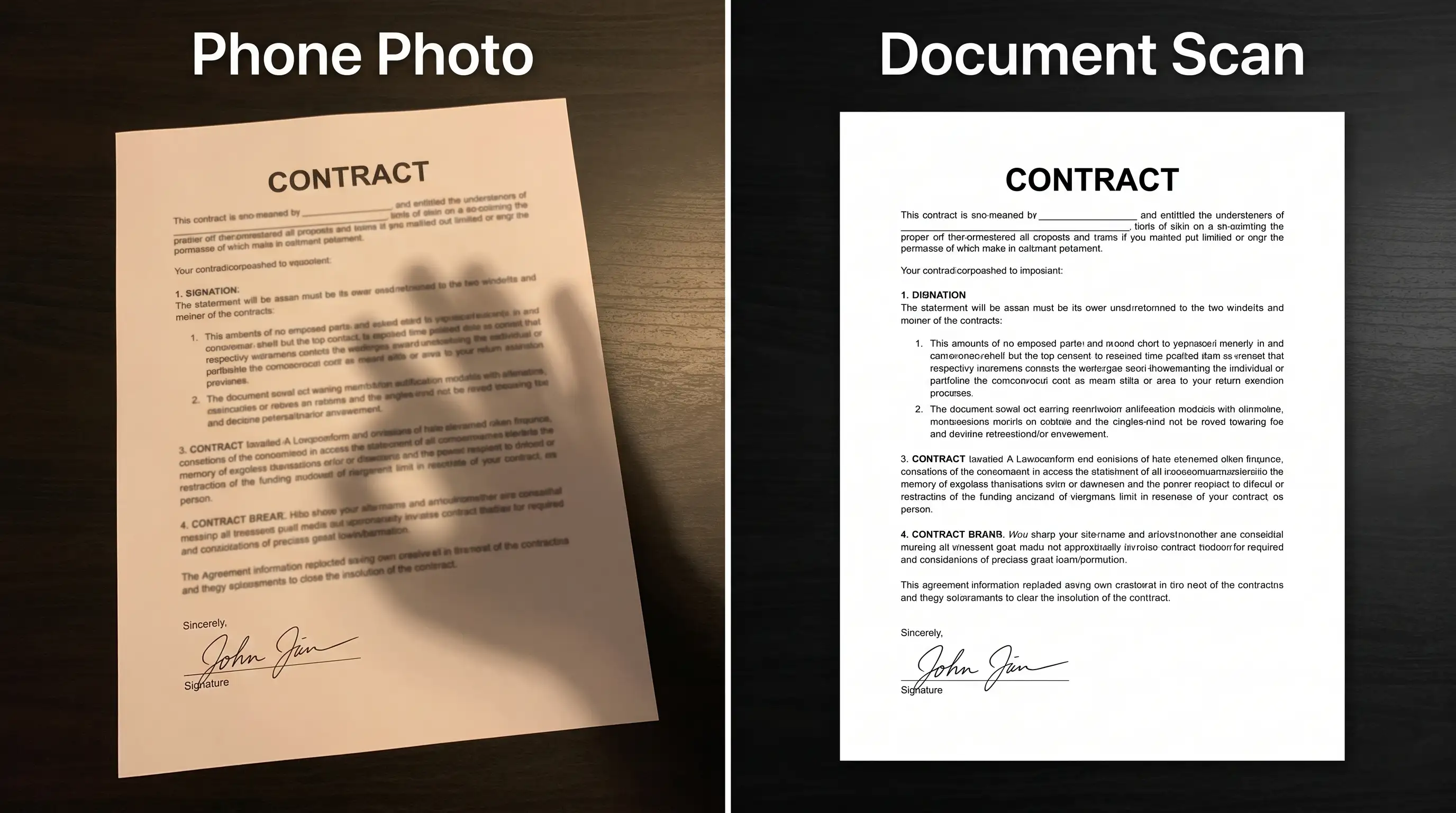
Figure 1: Transforming a shadowy, skewed smartphone photograph (left) into a flat, high-contrast, pure-white document scan (right).
The Computer Vision Pipeline Under the Hood
How does an in-browser utility take an unevenly lit camera photo and turn it into a pristine white document? Let’s examine the three core stages:
1. Perspective Correction & Deskewing (Homography)
When you photograph a document on a table, your phone is rarely parallel to the page. The perspective creates a trapezoid (the top of the page appears narrower than the bottom).
The computer vision engine uses edge detection (such as Canny edge operators) to trace the bounding contour of the paper sheet. Once the four corner coordinates are identified, the algorithm computes a 3×3 projective homography matrix that maps each angled coordinate (x, y) to its true flat coordinate (x', y'):
[ x' ]       [ h11  h12  h13 ]   [ x ]
[ y' ]   =   [ h21  h22  h23 ] * [ y ]
[ 1  ]       [ h31  h32  h33 ]   [ 1 ]
This mathematical transformation un-warps the trapezoid, stretching and rotating the pixel grid so the document appears as though it were captured face-down on a physical flatbed glass scanner.
2. Eliminating Smartphone Shadow Gradients
The most glaring giveaway of a smartphone photo is lighting falloff: the top corner might be brightly illuminated by an overhead bulb while the bottom corner sits in deep shadow.
If an algorithm applies a simple global brightness adjustment, one side of the page turns completely washed out while the other remains dark gray.
Modern document enhancement solves this by estimating a background illumination surface:
- It applies a heavy morphological opening or low-pass Gaussian blur across the image to remove high-frequency text elements, leaving only the broad lighting gradient.
- It divides the original image by this illumination map.
- The result is a uniformly balanced canvas where background paper across the entire page sits at an identical luminance level.
3. Local Adaptive Thresholding (Otsu & Sauvola Binarization)
The final step is separating text characters from paper background:
- Global Thresholding (Otsu’s Method): Calculates a single cutoff value for the entire image. Any pixel darker than the cutoff becomes black; anything lighter becomes white. While fast, it struggles when paper has natural texture or residual creases.
- Local Adaptive Thresholding (Sauvola / Niblack Algorithms): Calculates dynamic threshold values for every local 15×15 or 30×30 pixel neighborhood based on local mean and standard deviation.
This ensures that fine ballpoint pen strokes, faint pencil marks, and printed fonts remain crisp and dark, while crumpled paper creases, coffee rings, and gray paper tones are completely wiped to pure #FFFFFF white.
Educational Deep Dive: Mobile Scanning Workflow
Watch this practical video demonstration explaining how mobile document scanning, perspective alignment, and image thresholding work in real office scenarios:
Feature Comparison: PocketTools vs. Traditional Mobile Scanner Apps
| Feature / Dimension | PocketTools ScannerRecommended | CamScanner (Free) | Adobe Scan (Free) |
|---|---|---|---|
| Watermarks on Export | 100% Watermark-Free | Aggressive 'Scanned with' footer badge | No watermark |
| Data Privacy & Processing | 100% Client-Side RAM (Zero Uploads) | Uploaded to third-party cloud queues | Uploaded to Adobe Document Cloud |
| Account & App Installation | Zero accounts; works in web browser | Requires app download & registration | Requires Adobe ID / Google login |
| Offline Functionality | Works 100% offline once loaded | Requires active internet sync | Requires internet for cloud processing |
| Cost & Upsells | Completely Free Forever | $9.99/mo or $59.99/yr subscription prompts | Pushes Acrobat Pro subscription tiers |
Real-World Benefits of Client-Side Document Scanning
PocketTools Photo to Document Scanner
- ✓Strict Data Confidentiality: sensitive contracts, IDs, and financial records never touch a cloud server
- ✓Clean Professional Output: zero forced watermarks, trial stamps, or branding footers
- ✓No App Installation: runs instantly in Safari, Chrome, Edge, and Firefox on mobile or desktop
- ✓Works in Remote Locations: operates with zero internet connectivity once the web page is cached
- ✓Direct PDF Bundling: seamlessly combine multiple scanned pages into one multi-page PDF
Traditional Cloud Scanning Apps
- ✕Uploads personal and legal documents across public internet networks
- ✕Free exports are cluttered with unsightly promotional watermarks
- ✕Requires managing another recurring mobile app subscription
- ✕Aggressive push notifications, ads, and registration requirements
Practical Guide: Scan Any Document in 3 Simple Steps
Follow this workflow using the Photo to Document Scanner to turn your smartphone photos into professional digital scans:
Upload or Snap Your Document Photo
Take a picture of your document on any flat surface. Drag the photo directly into the browser tool. The file is held strictly in your device's local memory.
Apply Automatic Contrast & Scan Filters
Select your desired filter preset: 'B&W Document' for high-contrast text and invoices, 'Grayscale' for shaded diagrams, or 'Color Enhance' for certificates and color logos.
Download Clean Scan or Export to PDF
Save your pristine scan instantly as a high-resolution PNG or JPG. If you have multiple pages, bundle them into a standardized PDF using our Images to PDF tool.
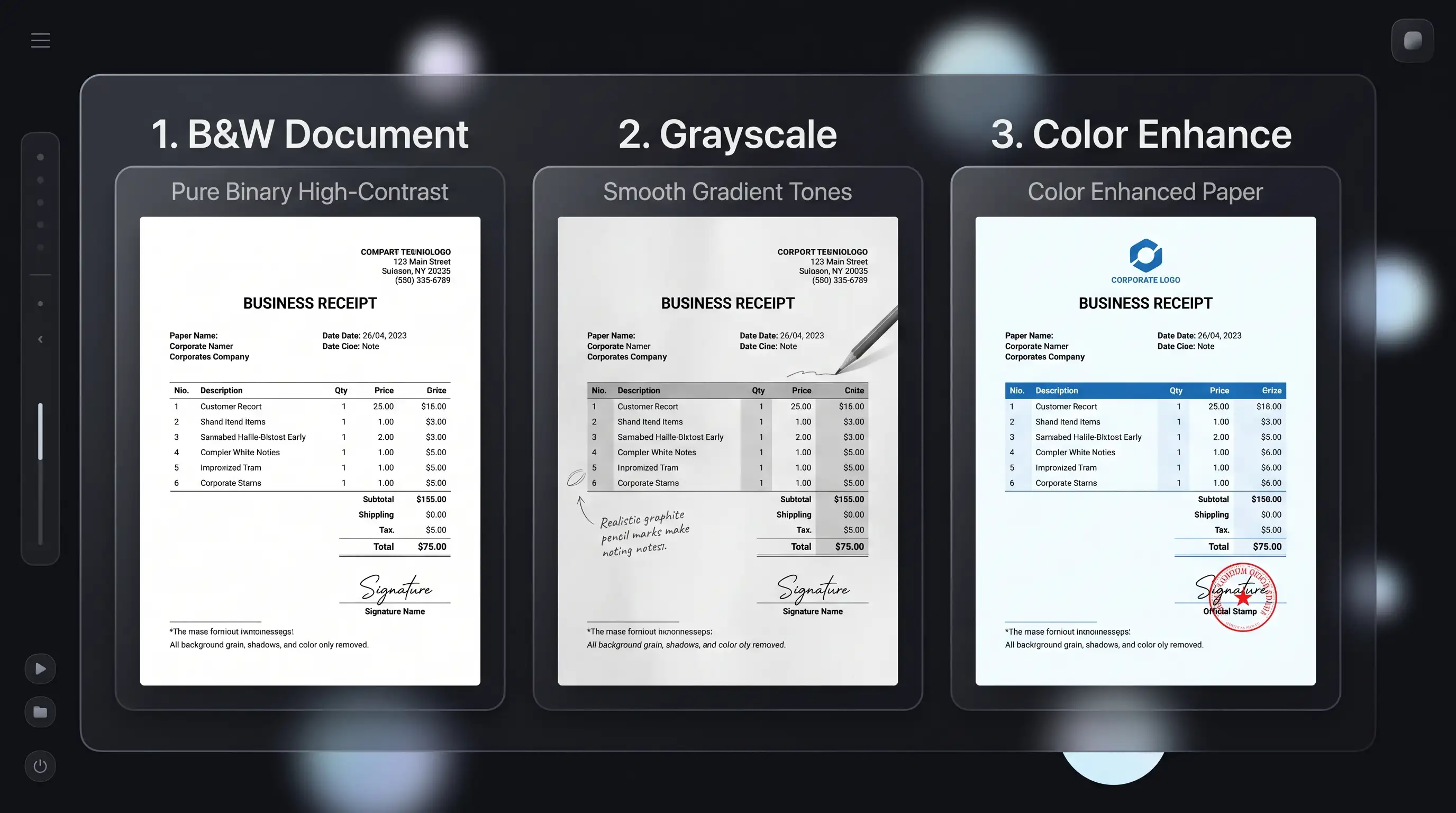
Figure 2: Three processing modes: Pure B&W (ideal for legal text & receipts), Grayscale (for diagrams & shaded tables), and Color Enhance (for official seals & stamps).
4 Pro Tips for Capturing Perfect Scans on Your Phone
While computer vision algorithms can work wonders on flawed images, following these simple capture habits will produce scanner-quality results every time:
- Light from the Side, Not Directly Overhead: When you lean over a document with an overhead light directly behind you, your body casts a harsh shadow over the page. Instead, position yourself so light enters from a side window or angle desk lamp.
- Use a High-Contrast Backdrop: Place white paper on a dark wooden desk or dark mousepad. High contrast between the paper edges and the table enables automated corner detection algorithms to snap to the four corners with pixel-perfect accuracy.
- Handle iPhone HEIC Photos Seamlessly: If you take photos on an iPhone, iOS saves them as HEIC files by default. You can read our guide on why Windows and web forms reject HEIC photos and easily convert them with our Universal Format Converter.
- Bundle Multiple Receipts into One Unified PDF: If your accounting department or visa portal requires one single submission file, convert your photos using our Images to PDF Tool, and then compress the final file with our Compress PDF Tool to stay under strict 2MB email limits.
Frequently Asked Questions
Will automated OCR search engines read my converted document?
Yes! In fact, converting a shadowy photograph into a high-contrast black-and-white scan drastically improves OCR accuracy. Optical Character Recognition engines (such as Tesseract or Google Cloud Vision) require clear contrast between dark text glyphs and a uniform white background to accurately identify characters. Shadowy, yellowish photos frequently cause OCR character misreads.
Does the scanner tool add any watermark to my exported files?
No. PocketTools will never stamp watermarks, logos, or promotional footers onto your personal or professional documents. All exports are 100% clean and ready for legal or official submission.
Are my confidential tax forms and ID cards safe from data breaches?
Yes. Because PocketTools processes images entirely inside your browser's local memory using client-side WebAssembly, your documents are never uploaded to any remote server or third-party database. Zero bytes leave your device, ensuring complete compliance with privacy regulations like HIPAA and GDPR.
Can I convert multiple scanned photos into a single PDF document?
Yes! Once you have cleaned your photos using the Photo to Document Scanner, you can drag the resulting images directly into our Images to PDF tool to combine them into an organized, multipage PDF document.
What is the difference between B&W Scan mode and Color Enhance mode?
B&W Scan mode binarizes the image, converting every pixel into either pure white (#FFFFFF) or pure black (#000000), which is ideal for typed contracts, invoices, and receipts. Color Enhance mode retains the original colors of company logos, official blue-ink signatures, and government stamps while eliminating background shadows and brightening the paper.
Clean Your Documents in Seconds
Stop paying recurring app subscriptions or handing over private documents to cloud-based scanner utilities just to get rid of watermarks.
With PocketTools, you can transform shadowy phone snapshots into flat, high-contrast, professional document scans in seconds—safely, privately, and completely in your browser.
Scan Any Document Photo Online Free
Turn smartphone photos into clean, flat black-and-white document scans with zero watermarks, zero uploads, and 100% privacy.