When you fill out a job application, sign a lease agreement, or annotate a financial statement on your computer, you likely believe the document is complete once you hit “Save.”
Visually, everything appears in place: your text fills the boxes, your checkmarks are marked, and your electronic signature sits neatly on the dotted line.
However, beneath the surface of an interactive PDF, those entries are not permanent parts of the document. Instead, they hover over the page on detached interactive layers. Anyone who receives your file in this state can click into your answers, edit financial numbers, move your signature around, or delete entire annotations without leaving a trace.
Even worse, government portals, court filing systems, and automated enterprise intake pipelines frequently reject unflattened files, or worse—render them as completely blank pages.
This is where PDF flattening comes in. Flattening is the essential security and compatibility step that converts floating, interactive elements into permanent, static graphical objects welded to the document canvas.
In this foundational guide, we explore the internal anatomy of PDF layers, the five critical risks of sharing unflattened files, and how modern in-browser WebAssembly lets you flatten documents with zero data exposure.
The Internal Mechanics: How PDF Layers Actually Work
To understand PDF flattening, it helps to visualize an interactive PDF document not as a single sheet of paper, but as a stack of transparent acetate sheets:
- Layer 3: Annotations & OverlaysFloatingDigital signatures, highlight ribbons, stamps, and sticky notes (/Annots dictionary)
- Layer 2: Interactive AcroForm WidgetsEditableFillable text inputs, checkboxes, dropdown menus, and JavaScript scripts (/AcroForm)
- Layer 1: Base Content StreamStaticStatic background text, structural layout lines, vector graphics, and embedded images (/Contents)
- Result: Unified Flattened CanvasLockedAll three layers permanently rasterized and composited into a single immutable page stream
The Core Problem with Floating Layers
When you view an interactive PDF, your PDF reader composites these separate layers in real time:
- The Base Content Stream: Contains the fixed background elements—the corporate letterhead, legal boilerplate text, and table outlines.
- The Interactive Form Layer (AcroForms / XFA): Contains mutable data fields. The actual text you type is stored as a dynamic string value inside a dictionary object. The reader simply renders an interactive text box over the page coordinates.
- The Annotation Layer: Stores electronic signatures, freehand drawings, comments, and highlight markers.
Because these layers remain logically detached inside the file’s internal dictionary:
- A recipient can click any field and change
$5,000to$50,000. - A third party can right-click your signature image, select “Copy Image,” and paste your signature onto an unauthorized document.
- Incompatible PDF viewers (such as web browsers or mobile operating systems) might fail to composite the interactive layer, displaying a blank form to the recipient.
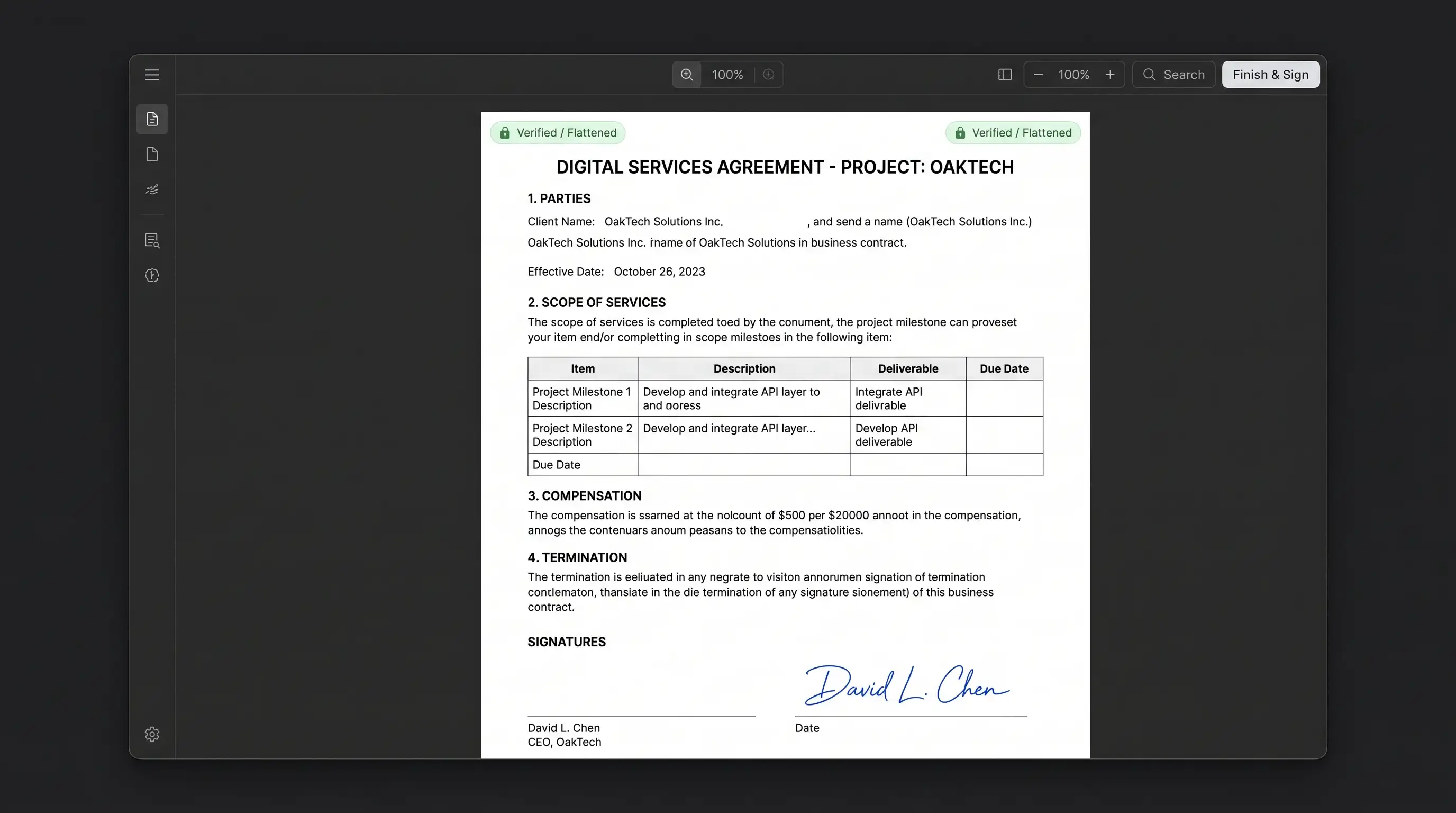
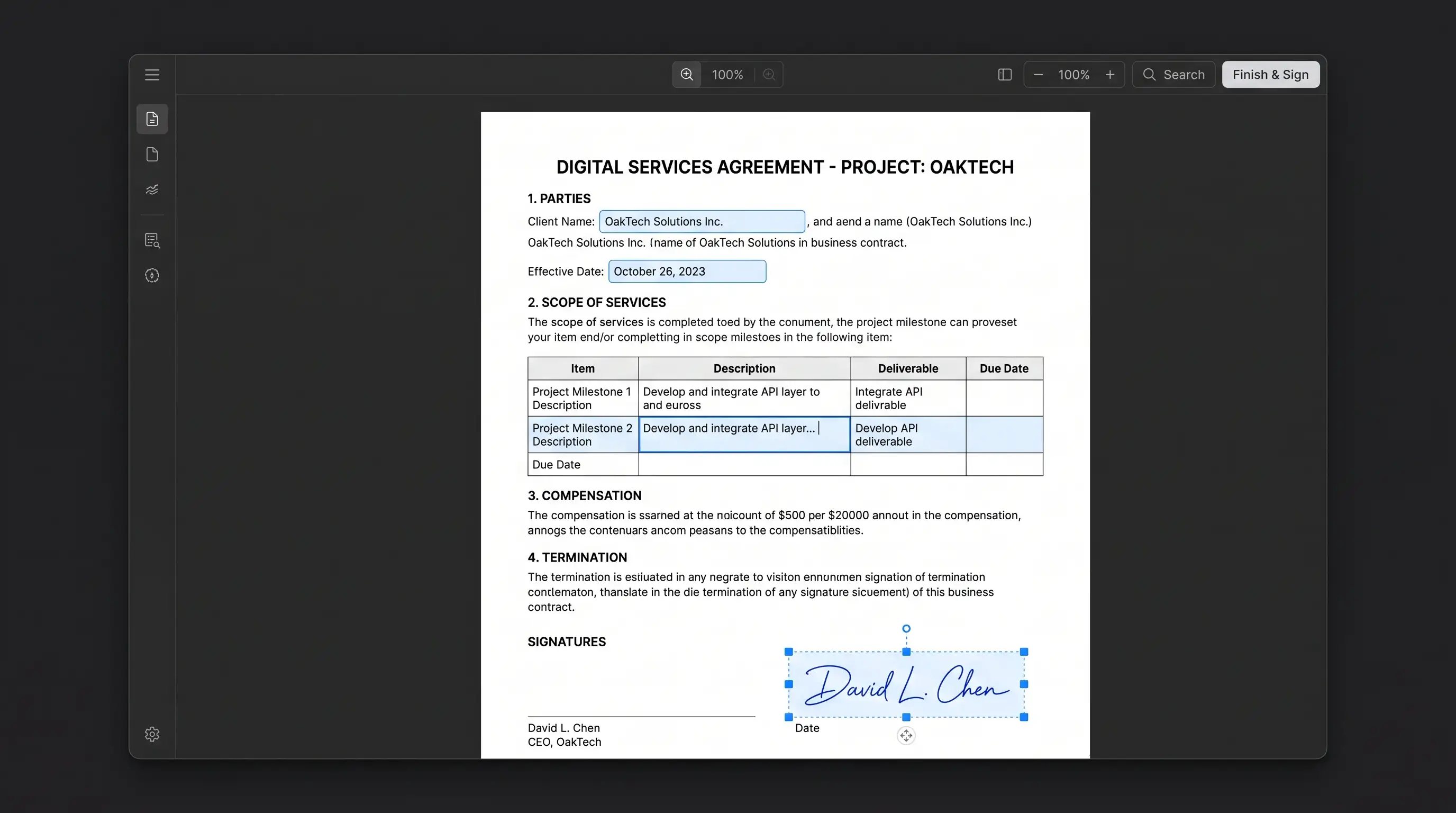
Interactive vs. Flattened: Visual Comparison
Slide the comparison bar below to see how flattening permanently locks form fields and signatures into the base document canvas:
5 Critical Scenarios Where Unflattened PDFs Fail
Why do institutions such as federal courts, the IRS, mortgage underwriters, and university registries demand flattened PDFs? Here are the five primary breakdown points:
1. The Contract Manipulation Threat
When negotiating deals, sending a contract with unflattened form fields or floating annotations is a severe legal hazard. Any PDF editor allows a dishonest party to modify terms, dates, or payment figures, resave the document, and claim that those were the agreed-upon conditions. Flattening permanently fuses the text into the underlying vector graphic stream, making unauthorized post-signing modifications impossible without leaving glaring visual tampering artifacts.
2. The “Floating Signature” Extraction Vulnerability
If you sign a document by inserting a transparent PNG of your handwritten signature, an unflattened PDF treats that signature as an independent, floating image asset. Anyone opening the file can right-click the signature, copy it to their clipboard, and paste your signature onto contracts, checks, or legal affidavits. Flattening rasterizes the signature directly into the surrounding page elements, making clean extraction impossible.
3. The “Blank Form” Rendering Disaster
Have you ever spent an hour filling out a government application on a Mac or smartphone, emailed it to a clerk, and received an angry response that the form was completely blank? This happens because different PDF engines handle interactive forms differently:
- Adobe Acrobat uses the full AcroForm and dynamic XFA specifications.
- Apple Preview and built-in mobile viewers often use a simplified renderer that saves entered data in proprietary annotation dictionaries without updating the standard appearance stream (
/AP). - When opened on a Windows PC or government portal, the software reads the standard stream, finds no static values, and displays empty fields.
Flattening eliminates this discrepancy by translating all user entries into universal PDF drawing commands that render identically on every device.
4. Mandatory Institutional Filing Rules (Courts & Government)
Automated document management systems enforce strict upload validations:
- Federal Courts (CM/ECF): Strict judicial filing rules reject PDFs with interactive form fields, embedded JavaScript, or dynamic macros to ensure courtroom evidence remains immutable.
- USCIS and Immigration Services: Visa petitions with unflattened fields frequently cause processing errors or automated denials.
- Mortgage & Title Closings: Underwriters require all loan disclosures, affidavits, and escrow documents to be flattened prior to notarization.
5. Malicious or Crashing Form Scripts
Dynamic PDF forms frequently include embedded JavaScript to calculate values, validate postal codes, or auto-format phone numbers. In addition to causing sluggish performance on mobile devices, these scripts can crash non-standard readers and present cybersecurity risks. Flattening strips active scripting code while preserving the final visual calculations.
Educational Deep Dive: When and Why to Flatten
For a visual breakdown of how PDF flattening works in real-world document workflows, watch this educational walkthrough:
Technical Comparison: Interactive vs. Flattened vs. Rasterized
Many users confuse standard PDF flattening with “Print to PDF” or converting pages into images. The following table highlights the critical distinctions:
| Feature / Dimension | Interactive (Fillable) | Flattened (PocketTools)Recommended | Rasterized (Scan Image) |
|---|---|---|---|
| Form Field Modifiability | Fully editable by anyone | Permanently locked | Permanently locked |
| Text Sharpness & Clarity | Crisp vector typography | Crisp vector typography (100% loss-free) | Pixelated bitmap (depends on DPI) |
| Text Search & Highlighting | Searchable and selectable | Searchable and selectable | Requires OCR; text is lost |
| Signature Security | Easily extracted / copied | Fused into canvas | Baked into image |
| File Size Efficiency | Medium (includes script bloat) | Compact (scripts stripped) | Very large (heavy image payload) |
| Universal Compatibility | Poor on mobile / Linux | 100% universal across all viewers | 100% universal across all viewers |
Flattening vs. Redacting vs. Encrypting: What’s the Difference?
Do not make the dangerous mistake of assuming that flattening hides confidential text. Here is how document protection methods differ:
- PDF Flattening: Fuses interactive widgets, comments, and signatures into the base page stream. Text remains visible and searchable.
- True Redaction: Permanently cuts out confidential words or coordinate boxes from the document tree, replacing them with blank or blackened pixels. Drawing a black rectangle over text and flattening the PDF does not redact it—the text characters remain extractable under the box!
- Password Encryption: Uses ciphers like AES-256 to lock the file with a Document Open password. Learn more in our guide on the truth about PDF passwords and encryption.
How In-Browser WebAssembly Executes Flattening
Traditionally, flattening a document required either buying an expensive desktop license for Adobe Acrobat Pro or uploading confidential files to third-party cloud conversion servers.
Uploading private tax returns, medical charts, or corporate NDA agreements to unknown web servers creates massive data liability.
PocketTools eliminates this risk through client-side WebAssembly:
- Local Memory Loading: Your PDF is loaded directly into an isolated memory buffer (
ArrayBuffer) in your browser’s RAM via the HTML5 File API. Zero network requests are made. - Appearance Stream Compilation: The WebAssembly engine scans the document’s
/Pagestree, locating every form field in the/AcroFormdictionary and every annotation in the/Annotsarray. It calculates the exact visual appearance (/APstream) of each entry. - Canvas Stream Injection: The engine injects these appearance operators directly into the page’s
/Contentsstream using standard PDF drawing commands. - Cross-Reference Rebuilding: The
/AcroFormand/Annotsdictionaries are safely deleted from the file trailer, the cross-reference (xref) table is regenerated, and your finalized document downloads immediately to your computer.
PocketTools Flatten PDF (Client-Side WASM)
- ✓100% Data Privacy: confidential contracts and financials never leave your device
- ✓Preserves Vector Typography: text remains razor-sharp and searchable at any zoom level
- ✓Instant Processing: zero upload or download latency, even on 100MB+ documents
- ✓Works Completely Offline: process files without internet once the browser page is loaded
- ✓Unlimited Use: no file size limits, daily quotas, or subscription paywalls
Traditional Cloud Flattening Tools
- ✕Uploads proprietary and sensitive documents to third-party remote servers
- ✕Free users are throttled with strict limits (5–10 files per day)
- ✕Slow round-trip upload and download queues over home or mobile internet
- ✕Some tools convert pages into blurry, low-resolution raster images
- ✕Intrusive advertising popups and aggressive subscription upselling
Step-by-Step: How to Flatten Your PDF in 3 Easy Steps
You can permanently secure your fillable forms and signatures in seconds:
Drop Your Completed PDF into the Flattener
Select your filled form, signed agreement, or annotated document. The file loads instantly into your browser's local memory with zero upload delay.
Confirm Your Entries and Signature Layout
The client-side engine automatically detects all interactive AcroForm fields, checkboxes, signature images, and annotations on each page.
Flatten & Save Your Protected Document
Click 'Flatten PDF'. The WebAssembly engine bakes all layers into the static vector stream and immediately saves your tamper-proof file to your downloads folder.
Frequently Asked Questions
Does flattening a PDF make the text unsearchable?
No. High-quality PDF flattening preserves all underlying font and vector drawing structures. You can still search for words (Ctrl+F / Cmd+F), select text with your cursor, and copy sentences. Only the interactive 'input field' containers and annotation wrappers are removed.
Can a flattened PDF be unflattened by a recipient?
No. Once a PDF is flattened and saved, the interactive form dictionaries and widget references are permanently purged from the document tree. There is no cryptographic or algorithmic way for a recipient to reverse the process. Always save an unflattened working draft for yourself before distributing a flattened copy.
Why did my form fields look blank before I flattened them?
This is a common bug caused by rendering incompatibilities between Apple Preview, web browsers, and Adobe Acrobat. When you fill a form in certain viewers, the data is saved in a secondary annotation dictionary without updating the primary appearance stream. Flattening the file forces the data to be written into the universal page drawing commands, ensuring it displays correctly on every screen.
Is flattening the same as 'Printing to PDF'?
Printing to PDF is an older workaround that often achieves a similar visual result, but with major drawbacks. Virtual printer drivers often downsample high-resolution diagrams, strip internal bookmarks and hyperlinks, and inject operating system build metadata into the file headers. True PDF flattening preserves all vector sharpness, links, and document structure while cleanly welding interactive fields.
Can I flatten a PDF while completely offline?
Yes! Because PocketTools executes all PDF manipulation locally using WebAssembly compiled to run in your browser sandbox, you can disconnect your internet, turn on airplane mode, and continue flattening documents without interruption.
What’s Next in the PDF Mastery Series?
In Part 2 of our PDF Mastery Series, we will examine Interactive Form Field Calculations: how automated sum fields, JavaScript validations, and formatted currency inputs work under the hood—and how to construct rock-solid forms that never miscalculate.
Until then, protect your signed contracts and avoid embarrassing blank-form submission errors by making flattening standard practice for every document you share.
Flatten Your PDF Forms & Signatures Free
Permanently lock interactive form fields and signatures into your document with zero server uploads and 100% in-browser privacy.