Whether you are applying for a government passport renewal, submitting an international visa application, uploading a profile picture to a professional registry, or listing inventory on an e-commerce platform, you have likely encountered this frustrating error:
“File upload failed: The uploaded image exceeds the maximum allowed file size of 200 KB. Please upload an image between 50 KB and 200 KB.”
Modern smartphone cameras capture stunning 24-megapixel or 48-megapixel photographs, but each image easily consumes anywhere from 5 MB to 15 MB of storage.
When users try to reduce this file size using standard image editors, they run into a guessing game: you drag a quality slider down to 50%, export, and find the file is still 245 KB. You drag it down to 20%, export again, and the file shrinks to 35 KB—but your face is an unrecognizable, pixelated blur.
How do you compress an image to an exact target file size (like 100 KB, 200 KB, or 500 KB) while squeezing the absolute highest visual sharpness out of every available kilobyte?
In this comprehensive guide, we examine the inner workings of lossy and lossless image compression, uncover why simple percentage sliders fail to hit target file sizes, and demonstrate how client-side WebAssembly makes it possible to hit exact kilobyte targets directly in your browser without uploading private passport photos to cloud servers.
Why Simple Quality Sliders Fail to Hit Target File Sizes
Most basic image editing applications provide a single percentage slider labeled “Quality (0% - 100%)”.
The reason this slider cannot reliably produce a specific file size is that file size does not correlate linearly with quality settings.
File size depends heavily on image entropy—the amount of unpredictable visual information in the photograph:
- Low-Entropy Images: A graphic with smooth gradients, solid backgrounds, or large flat color areas compresses drastically. Setting quality to 80% might shrink a 5 MB file down to 60 KB.
- High-Entropy Images: A photograph of foliage, rough fabric, detailed skin texture, or text documents contains complex high-frequency patterns. Setting quality to 80% on that same 5 MB file might result in a 1.2 MB file.
If you need a file to be strictly under 200 KB, a percentage slider forces you to guess, export, check file properties, re-adjust, and repeat until you accidentally stumble upon the right balance.
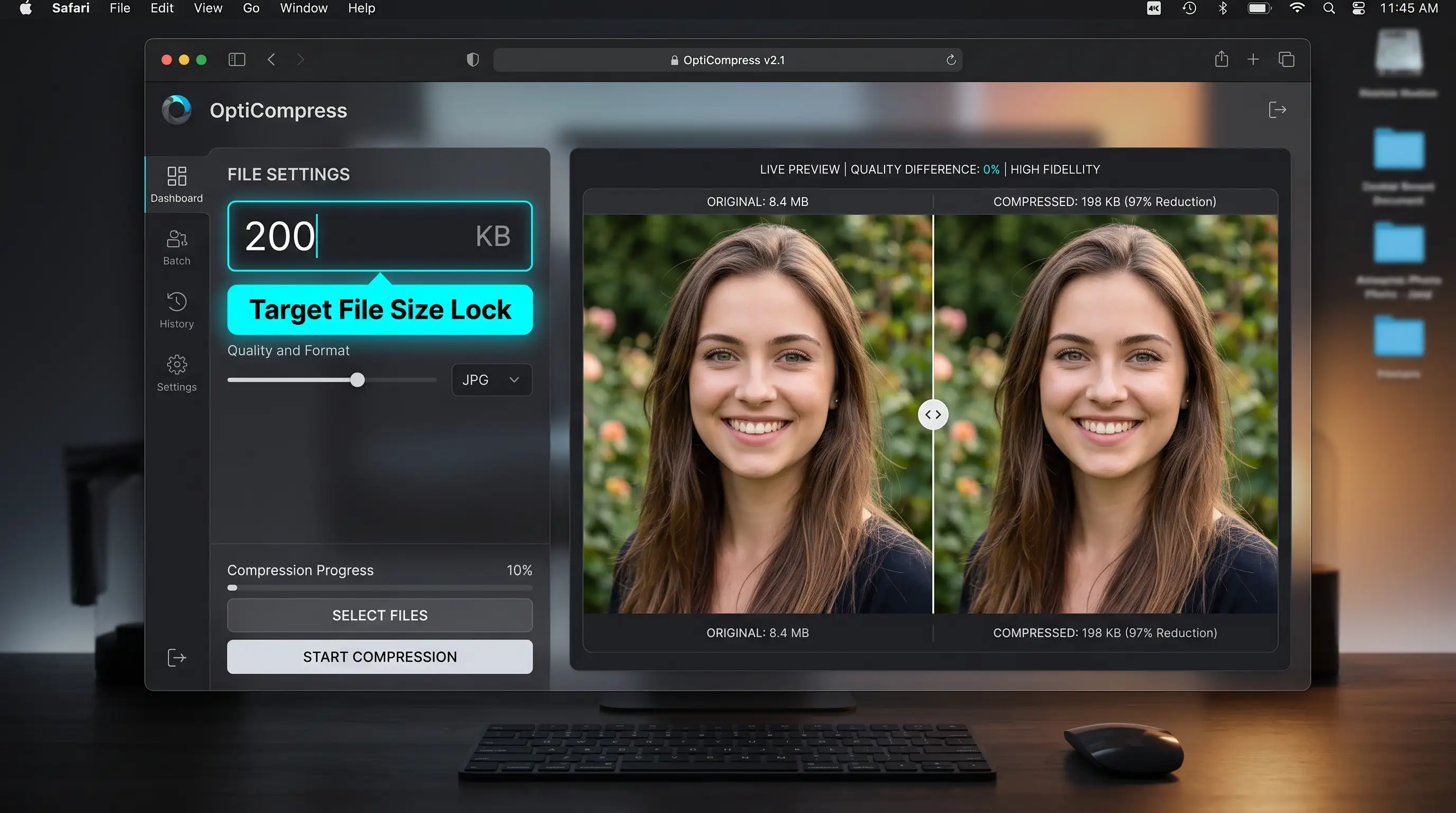
Figure 1: Target File Size mode automatically determines the highest possible visual quality that fits within your exact byte ceiling.
The Four Stages of Intelligent Target-Size Compression
Instead of manual guesswork, modern client-side optimizers like the Smart Image Compressor utilize an automated four-stage pipeline:
- Stage 1: Dimension Pre-Scaling (Downsampling)ResamplingIf the input resolution is unnecessarily massive (e.g., 8000x6000px for a 500px portal avatar), smart bicubic or Lanczos resampling reduces pixel dimensions first.
- Stage 2: Chroma Subsampling (YCbCr 4:2:0)Color ScienceHuman eyes are far more sensitive to brightness (luminance) than color (chrominance). Color resolution is halved while luminance detail remains untouched.
- Stage 3: Discrete Cosine Transform (DCT) & QuantizationQuantizationImage data is converted into frequency coefficients. Subtle high-frequency noise that the human eye cannot perceive is rounded off into zero values.
- Stage 4: Binary Search Rate-Control LoopConvergenceThe in-memory algorithm tests quantization tables in milliseconds, zeroing in on the exact quality value that hits your target KB ceiling.
The Binary Search Rate-Control Loop
To hit an exact size (such as 150 KB), the compressor does not guess. In local memory, it runs a binary search algorithm:
- It compresses a draft in RAM at quality 50%.
- If the result is 110 KB (too small), it tests halfway higher at quality 75%.
- If quality 75% yields 180 KB (too large), it tests quality 62%.
- Within 5 to 7 iterative passes—executed in less than 300 milliseconds on your computer’s CPU—it locks onto the absolute maximum quality score that produces a file under 150 KB.
Format Showdown: JPEG vs. WebP vs. PNG for Target Sizes
Choosing the right image format drastically changes how much visual clarity fits inside your file budget:
| Feature / Dimension | MozJPEG | WebPRecommended | Quantized PNG |
|---|---|---|---|
| Compression Efficiency | High for photographs | 25% - 35% higher than JPEG | Poor for photos; great for icons |
| Visual Artifacts at Low KB | Blocky 8x8 DCT grid artifacts | Soft, smooth blurring (less harsh) | Color banding / posterization |
| Alpha Transparency Support | No (Solid white/black background) | Yes (Lossy and lossless alpha) | Yes (Full 8-bit alpha channel) |
| Web & Portal Compatibility | 100% universal across all portals | >97% modern web; older portals reject | 100% universal across all portals |
| Ideal Target Size Scenario | Government forms & visa portals | Modern websites & fast blogs | Logos, signatures & line graphics |
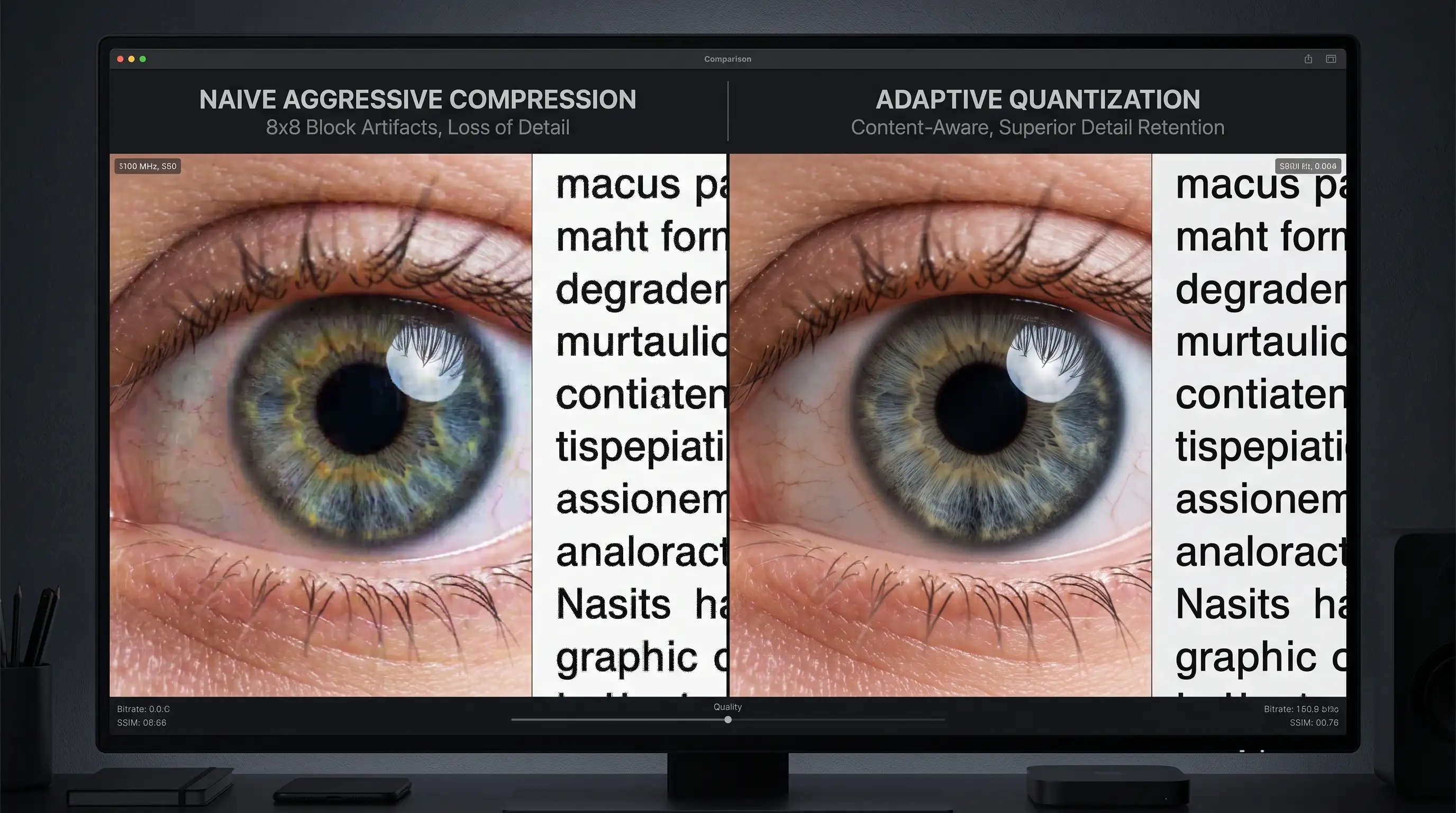
Figure 2: Naive compression (left) introduces blocky grid ringing, while smart adaptive quantization (right) retains sharp eyes, text, and edge contrast.
Educational Deep Dive: How to Reduce Image Size While Keeping Quality
Watch this practical video demonstration explaining the relationship between pixel dimensions, quality settings, and clean export sizes:
Client-Side In-Browser Compression vs. Cloud Services
PocketTools Smart Image Compressor
- ✓100% Data Confidentiality: sensitive passport headshots and legal documents never leave your machine
- ✓Exact Target Size Mode: enter '200 KB' or '100 KB' and the engine hits the ceiling automatically
- ✓Zero File Upload Limits: compress high-resolution 48MP photos with no file size gating
- ✓Works Completely Offline: optimize images on flights or low-connectivity mobile networks
- ✓Free Forever: no monthly subscriptions, daily credit quotas, or marketing paywalls
Traditional Cloud Compressors (TinyPNG, etc.)
- ✕Transfers private corporate and personal imagery across third-party cloud servers
- ✕No target size controls; only provides a generic, inflexible lossy compression pass
- ✕Restricts free users to maximum file sizes (often capped at 5 MB per image)
- ✕Slow round-trip upload and download queues over mobile internet connections
Practical Guide: Compress Any Image to an Exact Target Size in 3 Steps
Follow this workflow using the Smart Image Compressor to hit upload size limits on the first try:
Drop Your Photo into the Compressor
Select any JPG, PNG, or WebP image. The file is loaded instantly into your browser's local RAM via WebAssembly with zero network upload delay.
Select 'Target Size' Mode and Enter Your KB Limit
Switch from standard quality percentage to 'Target Size (KB)'. Type your required limit—for example, '200' for a 200 KB government portal limit.
Download Your Optimized Image
The binary search engine iterates in milliseconds and generates the highest-clarity export under your byte ceiling. Click 'Download' to save immediately.
4 Pro Tips for Compressing Upload Photos
To pass strict portal inspections without compromising your photo:
- Crop Out Unnecessary Background Before Compressing: If you are uploading a passport or ID photo, use the Crop & Resize Tool to trim away excess background wall space first. Fewer pixels to encode means higher quality for the actual face.
- Convert iPhone HEIC Photos First: iPhones capture photos in Apple’s proprietary HEIC format, which government portals reject. Read our guide on why web forms reject HEIC photos and convert them with our Universal Format Converter before optimizing size.
- Clean Up Document Shadows: If your upload is a photo of a signed document or paper receipt, run it through our Photo to Document Scanner first. Whiten the background paper to eliminate shadow noise, which drastically reduces the compressed file weight.
- Bundle Photos into a Compact PDF: If an employer or portal requests a single PDF file containing multiple image attachments, convert your optimized photos using our Images to PDF Tool, and then review our guide on how to compress PDF files without losing quality.
Frequently Asked Questions
Why do government and visa portals enforce such low file size limits like 200 KB?
Government and enterprise intake portals process millions of submissions annually. Limiting photo uploads to 100 KB or 200 KB minimizes their cloud database storage costs, prevents denial-of-service server overloads, and ensures fast automated database indexing. However, portal software rarely guides users on how to achieve that size without degrading visual quality.
Will shrinking an image to 100 KB make it look blurry or unreadable?
Not if compressed intelligently. By combining slight dimension downsampling (e.g., resizing an 8000px image to 1600px) with adaptive chroma subsampling and quantization, a photo compressed to 100 KB will look pin-sharp and crystal clear on smartphone and computer displays. Blurriness only occurs when users apply aggressive naive compression to massive unscaled dimensions.
What is the difference between lossy and lossless image compression?
Lossless compression (like standard PNG or ZIP) reduces file size by identifying mathematical redundancies without altering a single pixel value. It can only reduce file sizes by 10% to 30%. Lossy compression (like JPEG and WebP) intelligently discards subtle color nuances and high-frequency noise that the human eye cannot perceive, reducing file sizes by 70% to 90% with zero noticeable change in visible clarity.
Can I compress PNG images with transparent backgrounds to an exact KB size?
Yes! Modern WebP supports lossy compression while preserving full 8-bit alpha transparency. Alternatively, our compressor applies intelligent palette color quantization (similar to pngquant) to PNG files, reducing 24-bit truecolor to 256 optimized indexed colors while keeping transparency intact.
Are my personal ID photos safe from data harvesting?
Yes. Because PocketTools processes all media on-device using client-side WebAssembly, your photos never leave your computer's local memory. No files are uploaded to remote servers, no copies are saved to third-party databases, and no personal imagery is harvested.
Hit Your Upload Limits on the First Try
Stop wrestling with frustrating trial-and-error quality sliders or handing over sensitive ID photos to cloud conversion sites.
With PocketTools, you can compress any photograph to an exact kilobyte target in seconds—privately, reliably, and completely in your browser.
Compress Images to Exact Size Free
Shrink JPG, PNG, and WebP images to exact KB or MB limits with live visual preview and 100% in-browser privacy.