Imagine sending an invoice, expense report, or mortgage application to a client. You carefully programmed the document with automated calculation fields so that entering quantities and unit prices automatically tabulates subtotals, applies state sales tax, and displays the grand total.
The client opens your PDF on their iPhone or inside Google Chrome, types in their figures, and… nothing happens.
The subtotal stays at $0.00, the sales tax line remains blank, and the grand total never computes. Confused, the client manually types arbitrary numbers into the total box or returns an incomplete document with conflicting figures.
Why do interactive PDF form calculations work smoothly on desktop Adobe Acrobat, but fail completely across Apple Preview, mobile devices, and standard web browsers?
In this second installment of our PDF Mastery Series, we unpack the internal calculation engines of PDF AcroForms, investigate the notorious “Calculation Order Trap,” and demonstrate how to fill, verify, and lock calculated documents without compatibility failures or cloud privacy risks.
The Three Ways PDFs Compute Math
Under the ISO 32000 PDF standard, interactive forms are built on the AcroForm specification. Within this specification, text inputs can be configured to compute dynamic mathematical values using three distinct approaches:
- Method 1: Predefined Value OperationsNo-Code / NativeSum (+), Product (×), Average, Minimum, and Maximum. Executed natively by standard /C action dictionaries without programming.
- Method 2: Simplified Field NotationFormulasAlgebraic expressions such as '(Quantity * Price) - Discount'. Parsed into calculation trees by Acrobat-compatible formula interpreters.
- Method 3: Custom Acrobat JavaScript EngineAcroJS EngineFull client-side scripting (AcroJS / AFSimple_Calculate) supporting tiered volume discounts, currency masking, regex, and date logic.
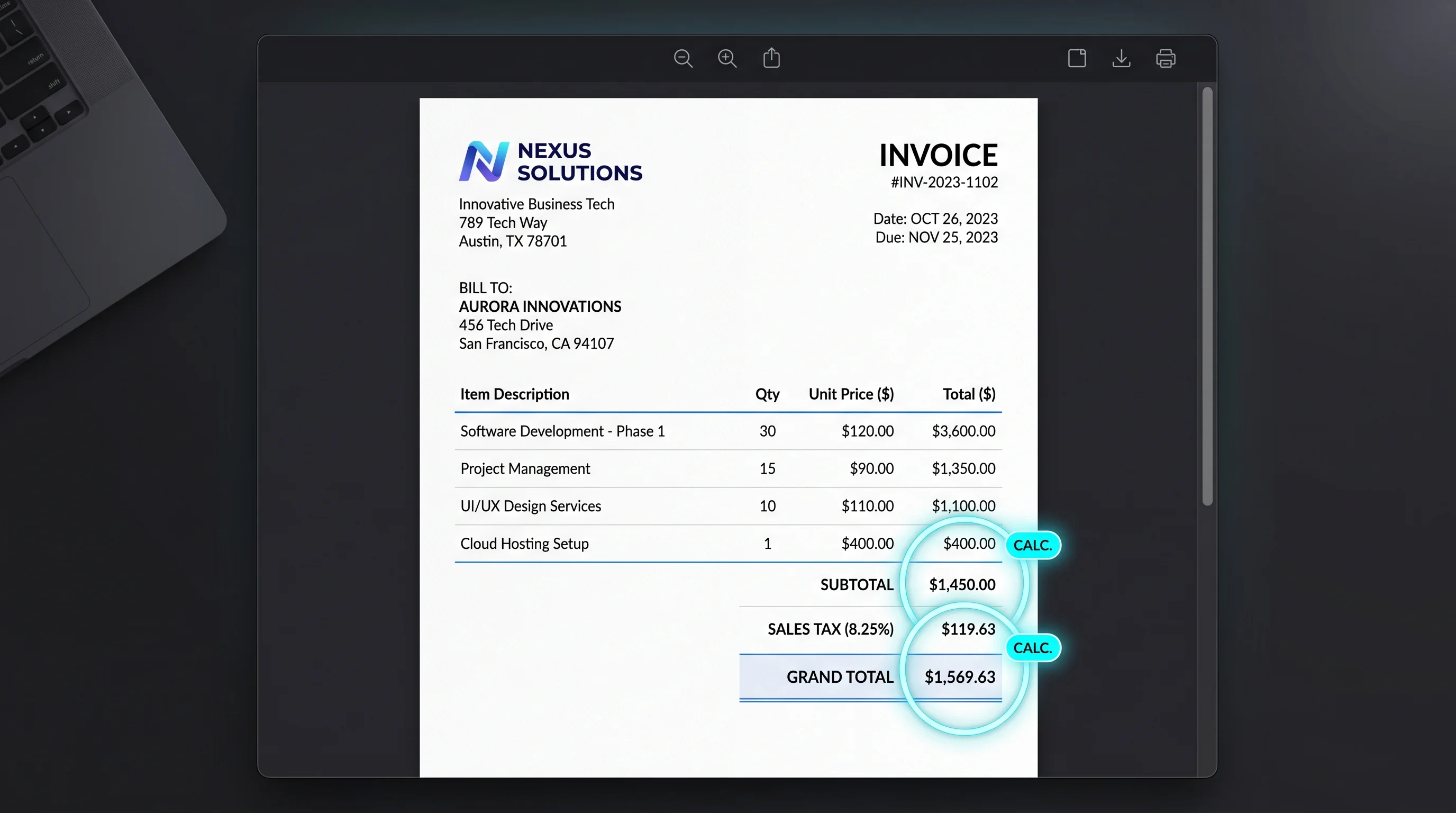
Figure 1: An interactive PDF invoice calculating line-item totals, discount percentages, and final balances dynamically.
1. Predefined Value Operations
The simplest calculation type requires no programming. You designate a target field and choose from five basic functions:
- Sum (+): Adds together designated field values (
Item1 + Item2 + Item3). - Product (×): Multiplies designated fields together (
Hours * HourlyRate). - Average: Calculates the mathematical mean across fields.
- Minimum / Maximum: Returns the lowest or highest value in a group.
2. Simplified Field Notation
For multi-step arithmetic, PDF forms support algebraic syntax without requiring full JavaScript syntax. You can type expressions such as:
(Subtotal * 0.0825) + Shipping - DiscountThe internal formula parser converts this expression into an executable script tree when the document loads.
3. Custom Acrobat JavaScript (AcroJS)
For complex business workflows, developers write custom JavaScript scripts executed by the PDF viewer’s embedded interpreter. This allows:
- Conditional Tiered Pricing: Applying different discount percentages depending on the order volume.
- Dynamic Field Visibility: Hiding or showing tax exemption fields based on selected checkboxes.
- Cross-Field Validation: Preventing the user from submitting if an expiration date precedes today’s date.
Why PDF Calculations Break on Mobile and Web Viewers
The root cause of broken calculations is a major architectural divide across digital document viewers: most lightweight PDF readers do not contain a JavaScript engine.
| Feature / Dimension | Adobe Acrobat Pro / Reader | Apple Preview (macOS / iOS) | Chrome / Safari / Edge | PocketTools Form FillerRecommended |
|---|---|---|---|---|
| Basic Sum / Multiply | Full Support | Often Broken / Uncomputed | Limited / Partial | Full Client-Side Execution |
| Simplified Notation | Full Support | Ignored (Shows default value) | Ignored in most engines | Full Client-Side Execution |
| Custom Acrobat JavaScript | Full Support (Sandboxed JS) | Completely Unsupported | Disabled for security | Full Supported Logic Engine |
| Calculation Order Array (/CO) | Strictly Evaluated | Not Evaluated | Not Evaluated | Strictly Evaluated per Spec |
| Privacy / Zero Uploads | Local app (Pushes Cloud Sync) | Local app | Local in-browser | 100% In-Browser WebAssembly |
The Apple Preview & Mobile Limitation
Apple Preview (the default PDF viewer on Mac, iPhone, and iPad) is optimized for ultra-fast reading and battery efficiency. It deliberately excludes the memory-heavy Adobe JavaScript runtime.
When you open a calculated PDF in Apple Preview:
- It displays form text inputs so you can type.
- It completely ignores the
/Calculateaction triggers. - The total field remains at its default placeholder value (often blank or
0).
The Browser Sandbox Limitation
Google Chrome, Mozilla Firefox, and Microsoft Edge employ built-in PDF viewers (such as PDFium) designed with strict browser security sandboxes. Because historic malicious PDF attacks used embedded JavaScript exploits to escape reader sandboxes, modern web browsers restrict or disable complex form calculation scripts by default.
The “Calculation Order Trap” (And How It Breaks Math)
Even inside Adobe Acrobat or professional readers, form calculations can produce blatantly incorrect math due to an invisible setting called the Calculation Order.
- Stage 1: Keystroke EventInputUser types a character; input is validated against allowable characters (e.g., numbers only)
- Stage 2: Format EventDisplayRaw input is transformed into presentation styling (e.g., adding currency signs '$' or commas)
- Stage 3: Validate EventRulesField verifies whether value falls within valid bounds (e.g., percentage between 0 and 100)
- Stage 4: Calculate Event (/CO Array)MathViewer recalculates dependent fields in the exact order listed in the document's calculation array
How Misordered Calculations Cause Errors
Consider an invoice with three calculation fields:
Subtotal= Sum of line itemsTaxAmount=Subtotal× 8%GrandTotal=Subtotal+TaxAmount
In the PDF internal structure, the document catalog maintains an array called /CO (Calculation Order).
If the form creator accidentally set the calculation order as:
GrandTotalSubtotalTaxAmount
When a user types a new line item, the PDF computes GrandTotal before it computes TaxAmount! The resulting grand total will be missing the tax from the latest entry, leaving your invoice off by dozens or hundreds of dollars until the user triggers a second calculation cycle.
Educational Deep Dive: Creating Calculable PDF Forms
Watch this comprehensive video tutorial by Sharon Smith demonstrating how automated invoice calculations, tax formulas, and field hierarchies are created:
The Golden Rule: Always Flatten After Calculating
Because you can never control which PDF viewer, mobile device, or browser your recipient will use, sending an interactive calculated form is a gamble.
If your client opens an unflattened invoice in Apple Preview, the calculated total might disappear. If an accounting department opens an unflattened expense report in an automated scanner, the numbers might not register.
For a complete breakdown of layer compositing and tamper prevention, review Part 1: What Is PDF Flattening?.

Figure 2: The dependency tree: changing line items updates Subtotal, which triggers Tax calculation, which updates Grand Total.
Client-Side In-Browser Form Filling vs. Cloud Converters
PocketTools (Client-Side In-Browser Form Filler)
- ✓100% Data Privacy: financial statements and patient intake forms never upload to any server
- ✓Real-Time Execution: instant in-memory math evaluation without server round-trip latency
- ✓Works Completely Offline: fill, calculate, and flatten forms without an internet connection
- ✓Zero Subscriptions: unlimited form filling with no daily usage throttling or paywalls
- ✓Seamless Security Integration: easily encrypt files with 256-bit AES password protection
Traditional Cloud Form Filling Websites
- ✕Uploads confidential personal and corporate documents to third-party cloud servers
- ✕Sluggish input response bounded by upload and download internet speeds
- ✕Files remain cached in remote server storage for hours after processing
- ✕Restricts free users to limited document counts per day
- ✕Risks violating data protection compliance regulations (GDPR, HIPAA, SOC 2)
Practical Guide: Fill, Calculate, and Lock Forms in 3 Steps
Follow this workflow using Fill PDF Forms and Flatten PDF Forms to produce accurate, unalterable documents:
Load Your Form into the Browser Form Filler
Drop your interactive PDF into the tool. The file is mapped directly into local RAM via WebAssembly. All form inputs and calculation scripts are initialized immediately.
Enter Values and Verify Automated Totals
Type your quantities, line items, and data entries. The calculation engine updates dependent subtotals, discounts, and taxes in real time.
Flatten to Permanently Lock the Calculations
Export the file directly into Flatten PDF Forms. The dynamic values are welded to the permanent page canvas, ensuring they never revert to zero on mobile devices.
Complementary Document Tools for Financial Workflows
When preparing invoices, estimates, and financial filings, combine your form workflow with these complementary utilities:
- Generate Clean PDF Invoices from Spreadsheets: If you prefer working in Excel, convert your spreadsheets with our in-browser Excel to PDF Converter while preserving column widths and print ranges.
- Encrypt for Secure Email Transmission: Lock financial statements with military-grade encryption using our Protect PDF Tool. Learn more in our technical guide on the truth about PDF passwords and encryption.
- Sanitize Internal Properties: Strip hidden workstation paths and author properties before sending bids using the Edit Metadata Tool.
Frequently Asked Questions
Why does my PDF form show correct totals on my Mac, but $0.00 on my client's PC?
This occurs when values are calculated in Apple Preview without saving standard appearance streams, or when the PC's PDF reader has JavaScript disabled. When the file is opened on a system that does not run calculation scripts, it displays the initial default value ($0.00). Flattening the document after entering data permanently bakes the calculated total into the visual canvas.
How do I fix a PDF form where totals calculate backward or out of order?
In professional PDF authoring software, open the Form Field panel and inspect the 'Set Calculation Order' dialog. Ensure fields are sequenced logically from inputs to intermediate calculations to final totals (e.g., LineItems → Subtotal → Tax → GrandTotal).
Can I add mathematical calculations to a PDF that was originally scanned from paper?
Scanned paper documents are static bitmap images without interactive form fields. To add calculations, you must first overlay interactive AcroForm text fields onto the document using form authoring software before defining calculation formulas.
Does flattening a calculated form remove my ability to edit the numbers later?
Yes. Flattening converts interactive form fields into permanent page drawing commands, stripping the underlying calculation scripts and editable text boxes. Always retain your original unflattened working copy so you can adjust figures in the future before generating a new flattened version.
Is it safe to fill out tax or medical forms in an in-browser form filler?
With PocketTools, yes. Unlike cloud converters that upload your inputs to external web servers, PocketTools runs WebAssembly directly in your device's browser memory. Your sensitive personal data, tax identification numbers, and financial details never leave your computer.
What’s Next in the PDF Mastery Series?
In Part 3 of our PDF Mastery Series, we will tackle Digital Signatures vs. Electronic Signatures: how public-key cryptographic hashing (PKI), digital certificates, and timestamp authorities prove a document has not been altered after signing.
Until then, protect your business invoices and client agreements from broken mobile calculations by filling and flattening your forms with PocketTools.
Fill & Calculate Interactive PDF Forms Free
Complete fillable forms, trigger real-time calculations, and prepare documents for flattening with 100% in-browser privacy.